Scheduling Task & Task Buckets
Print
Modified on: Wed, May 20, 2026 at 3:42 PM
- Navigate to the “Scheduled Tasks” or “Scheduled Task Buckets” tab in the left side panel.
- In this new window you can create new schedules for Tasks or Task Buckets, as well as view and edit existing schedules for Tasks or Task Buckets.
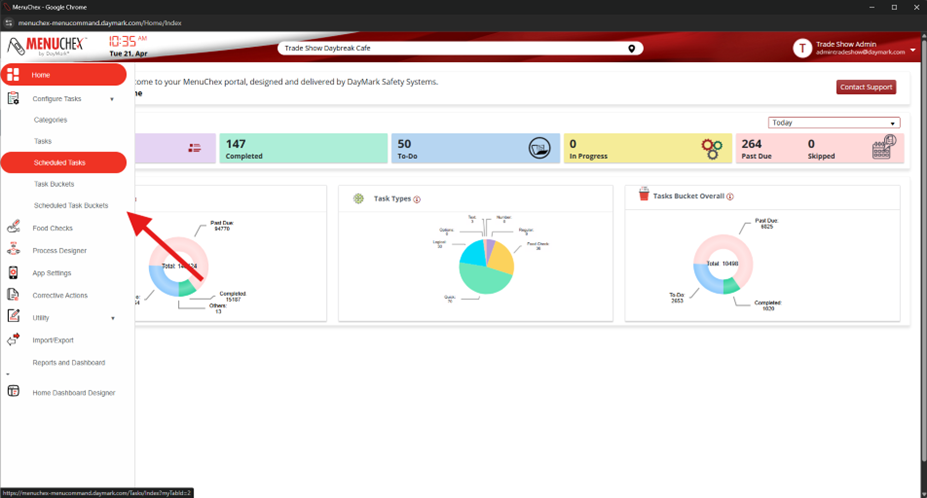
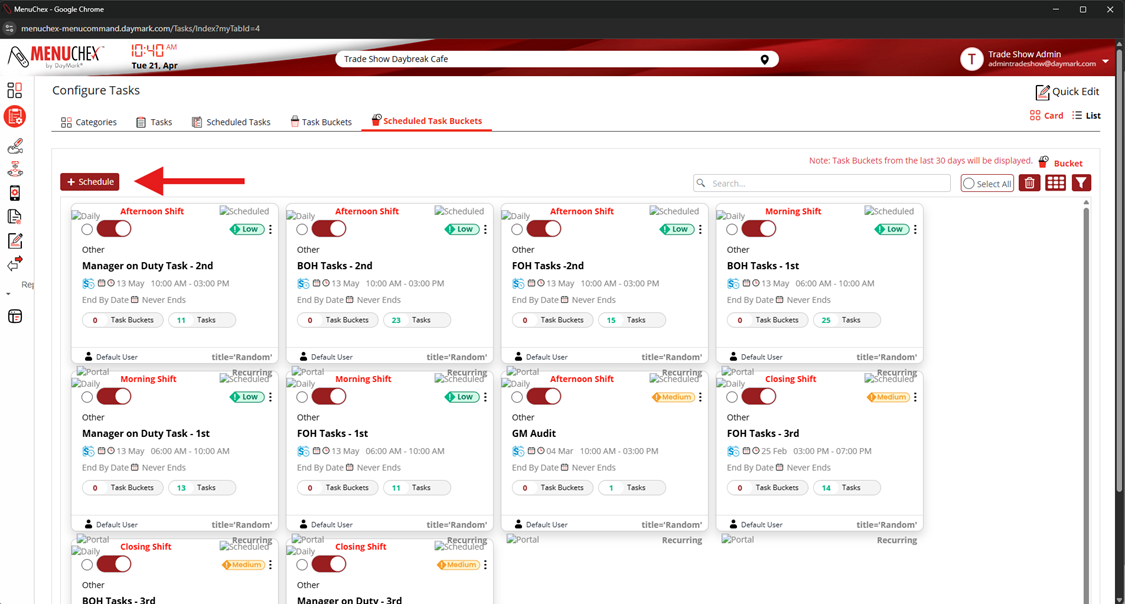
- To create a new schedule for a Task or a Task Bucket click the “+ Schedule Task” or “+ Schedule”
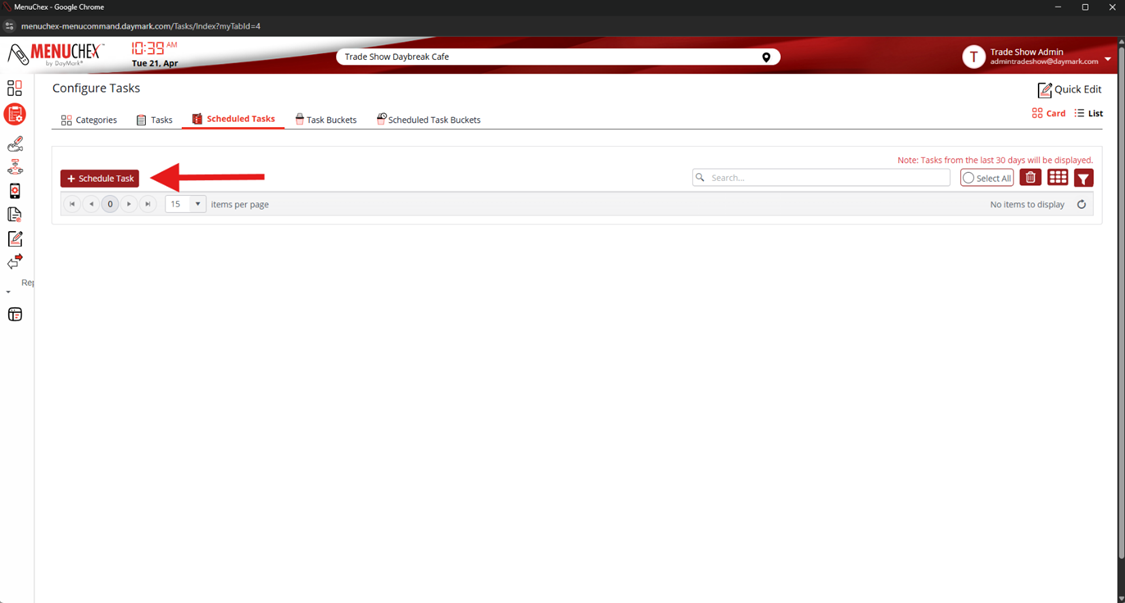
- For scheduling a new Task, you will see the following window.
- When you schedule a task, you set a specific date and time frame for the indivicual task to be completed. Scheduling individual tasks is useful for one off tasks that do not fit into a larger Task Bucket.
- The required fields needed are noted by the red (*)
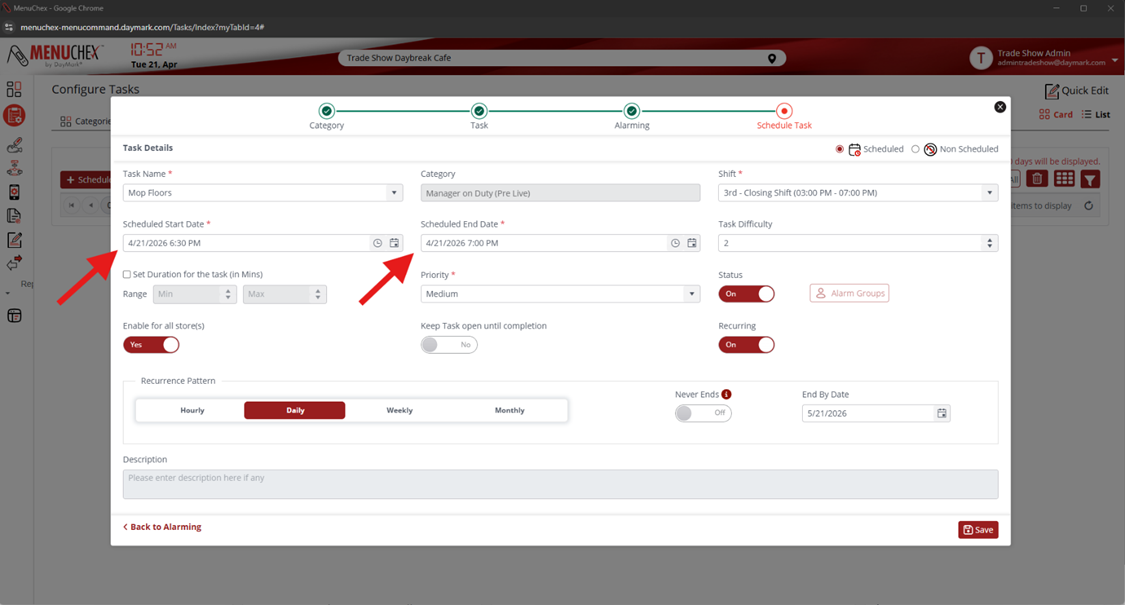
- You’ll select the Task name, and select the shift that you want to shedule the Task for.
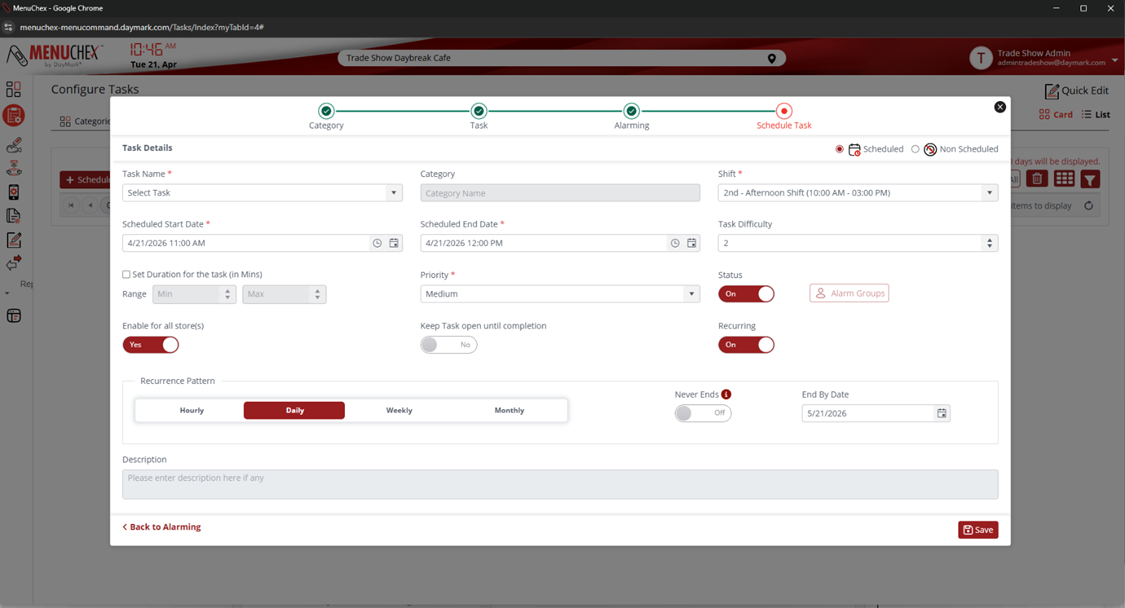
- You will set the schedule start as well as schedule end for when this Task should be completed. In this example, we have set the Task “Mop Floor” to be completed between 6:30 PM and 7:00PM.
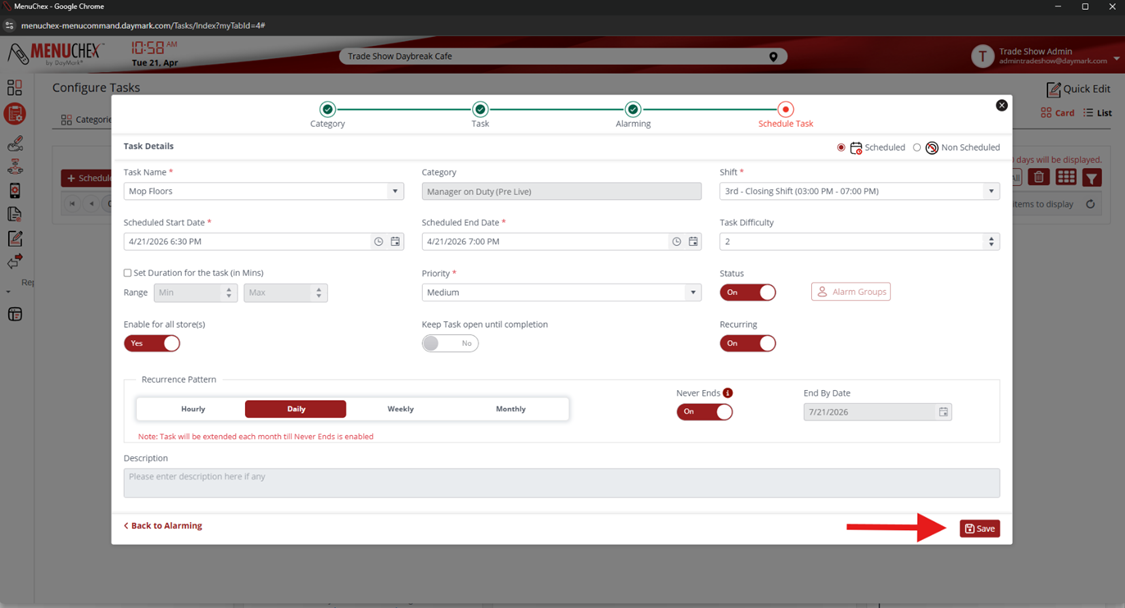
- At the bottom of this window, you can set a recurrance for this scheduled Task. Hourly, Daily, Weekly, Monthly. For this example we will set this Task to recur daily. You can select if this Task has an end date, or if the Task recurrance should never end. For this example we will enable that the Task recurrance never ends.
- After hitting the “Save” button the “Mop Floors” Task will be set to be completed between 6:30 and 7:00PM everyday without an end date.
- For scheduling a new Task Bucket, you will see the following window.
- When scheudling a Task Bucket, you are placeing a schedule on when an entire grouping of tasks are to be completed. This makes it easier to compile of lists of tasks to all be completed in the same time window. Scheudling Task Buckets is useful for large groups of tasks all needing to be completed togeter like a prep list or cleaning list.
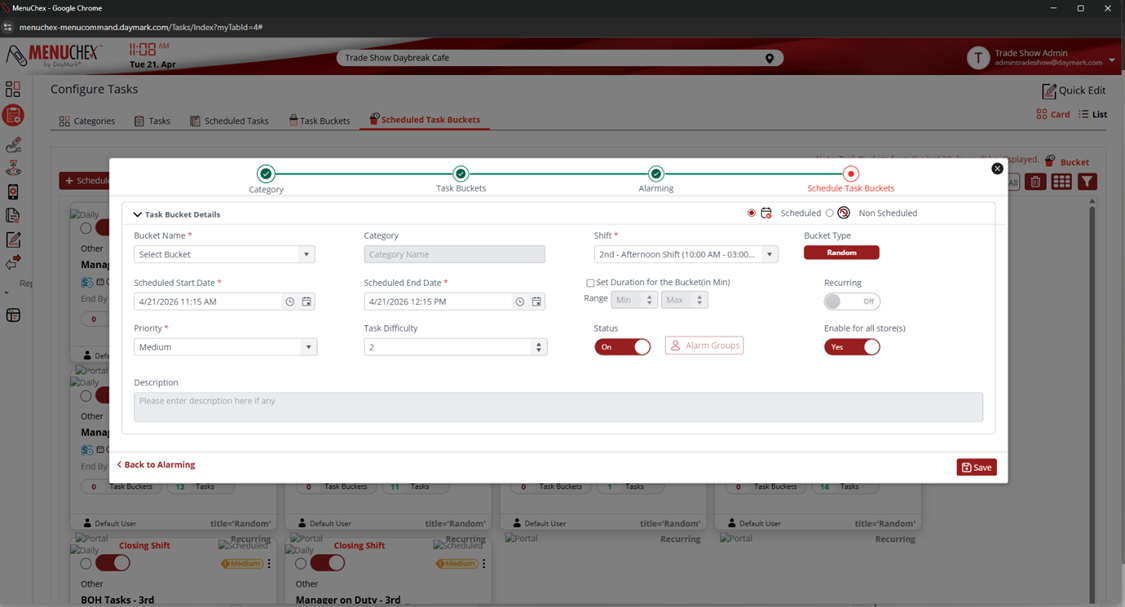
- The required fields needed are noted by the red (*)
- You’ll select the Task Bucket name, and select the shift that you want to schedule the Task Bucket for.
- You will set the Schedule Start as well as Schedule End for when this Task Bucket should be completed.
- In this example, we have set the Task Bucket “FOH Tasks” to be completed between 6:00 AM and 10:00 AM.
- At the bottom of this window, you can set a recurrance for this scheduled Task Bucket. Hourly, Daily, Weekly, Monthly. For this example we will set this Task Bucket to recur daily.
- You can select if this Task Bucket has an end date, or if the recurrance of Task Bucket should never end. For this example we will enable that the Tabk Bucket recurrance never ends.
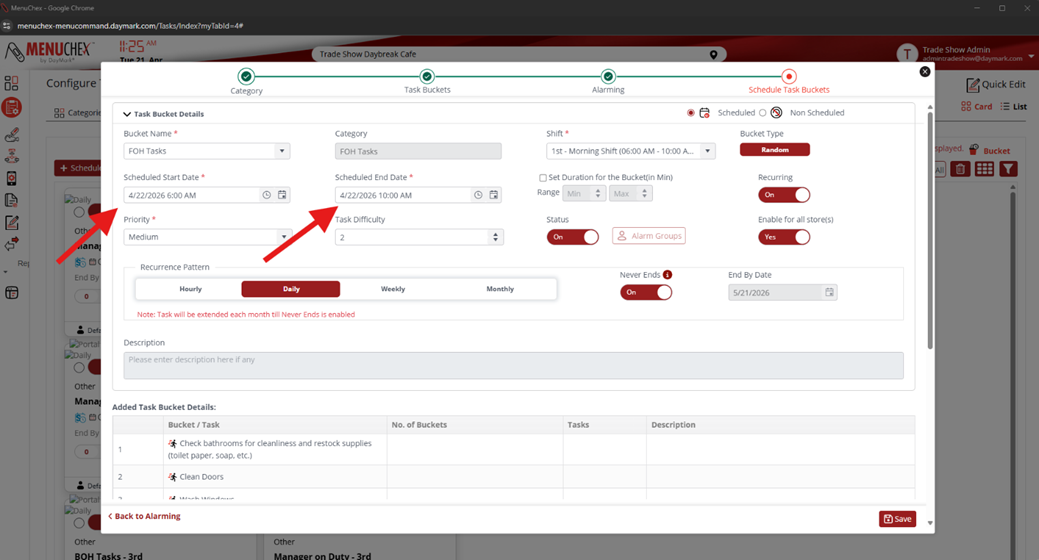
- After hitting the “Save” button the “FOH Tasks” Task Bucket will be set to be completed between 6:00 AM and 10:00 AM everyday without an end date.
Did you find it helpful?
Yes
No
Send feedback Sorry we couldn't be helpful. Help us improve this article with your feedback.
