Creating Task Buckets
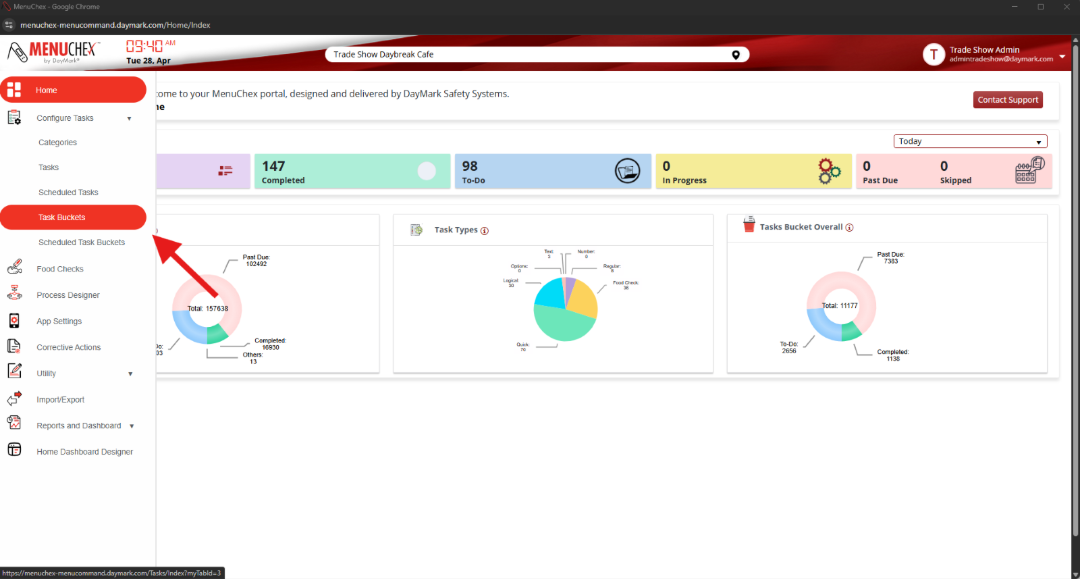
- In the Menu Chex portal, under “Configure Tasks” navigate to “Task Buckets”
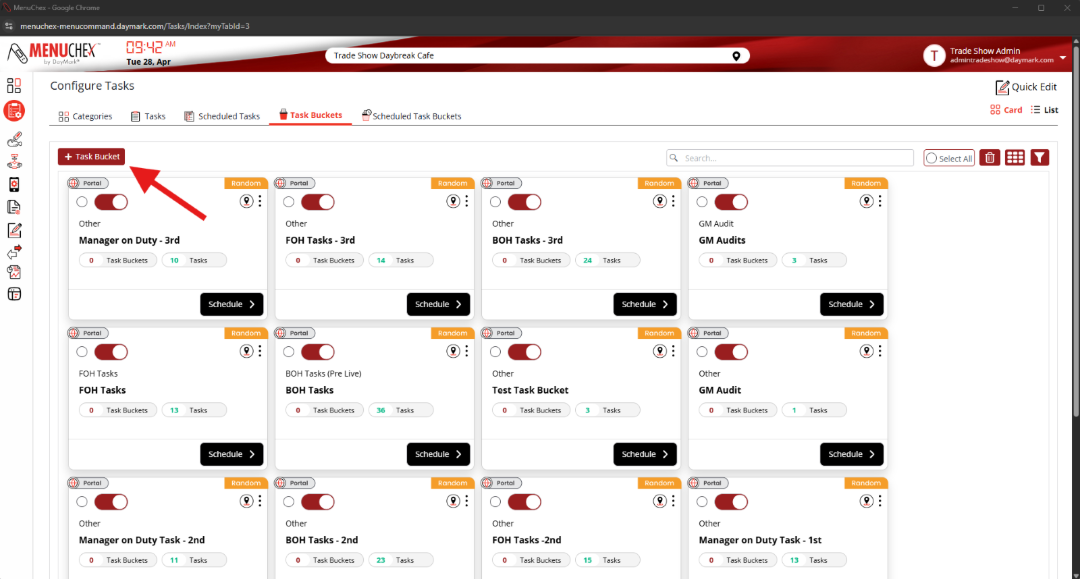
- In this tab you can edit existing Task Buckets or create new Task Buckets. To create a new Task Bucket, click the “+ Task Bucket” in the top left corner.
- In this window you will need to fill out the required fields marked with a (*)
- Enter your Task Bucket name and the Category you want to assign the Task Bucket to.
- Bucket Type allows you to set up the Task Bucket to be completed in a sequential order or allow the end user to complete the tasks inside the Task Bucket in any order.
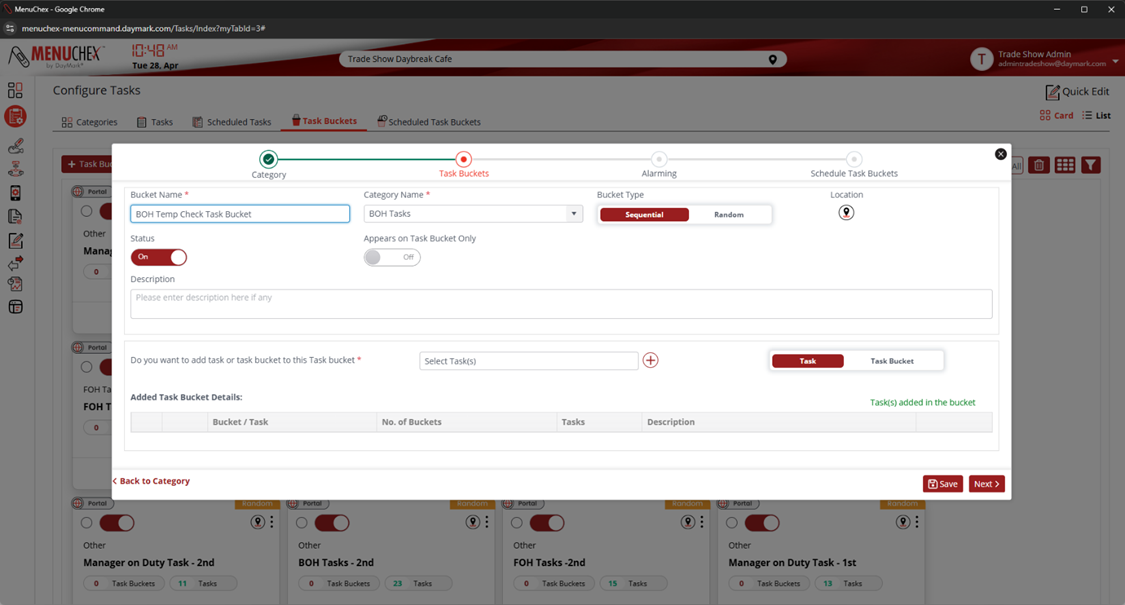
- Click the Select Task(s) drop down to highlight the tasks and then the (+) icon to add tasks to your Task Bucket.
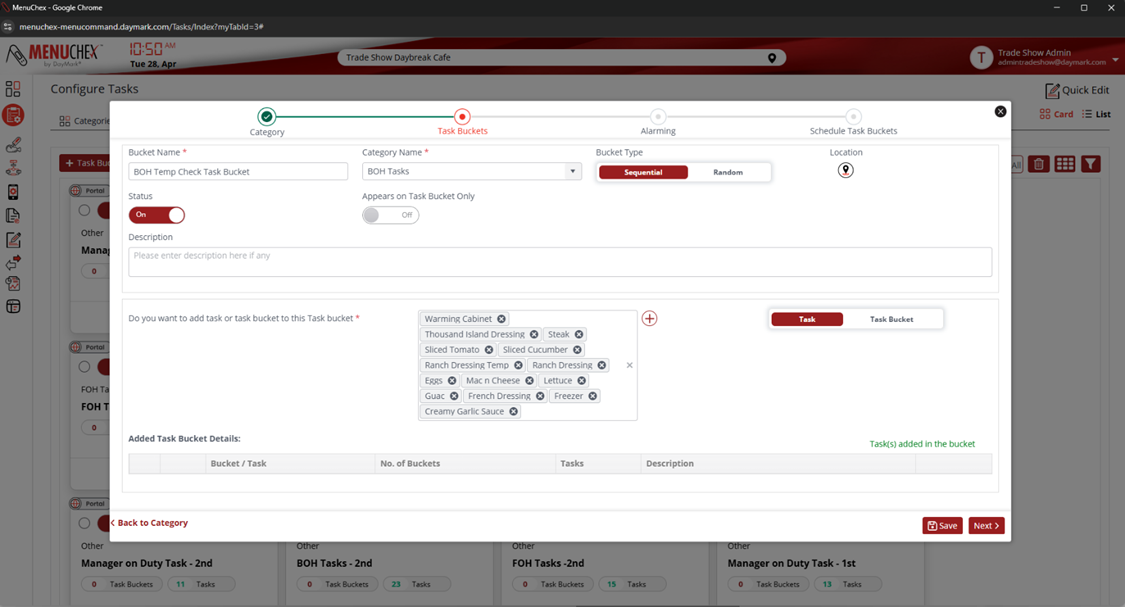
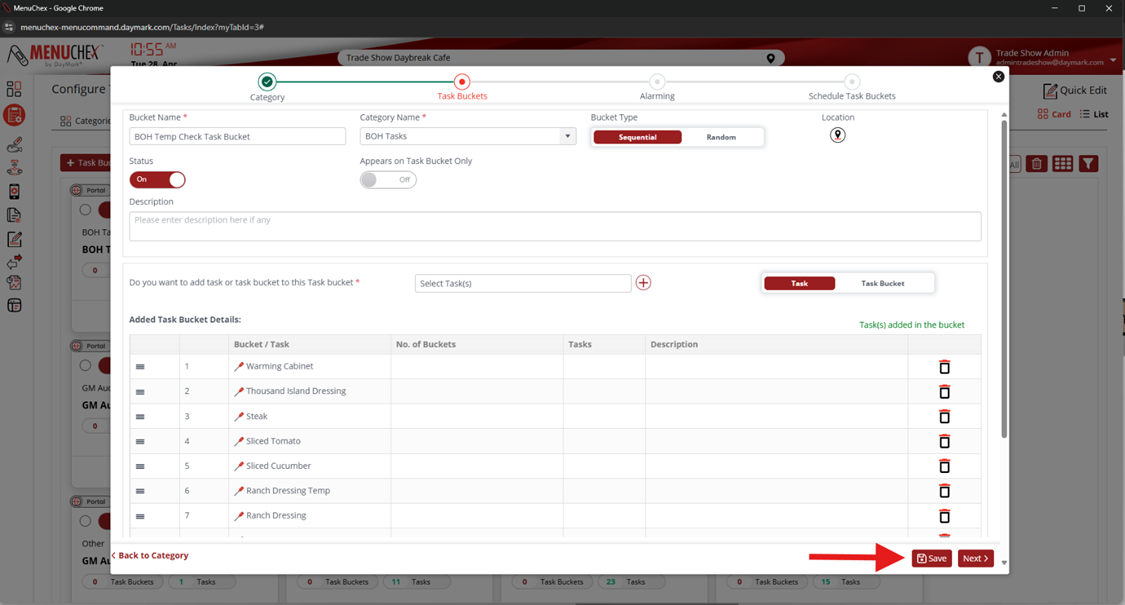
- After clicking the (+) icon, the highlighted tasks will be added to the list to the Task Bucket Details.
- From here to can set the order of the task by clicking the (☰) icon then dragging and dropping the tasks into the required order.
- Finally, click “Save” at the bottom to save the Task Bucket